Mastering the Obsidian Web Clipper: A Step-by-Step Guide to Smarter Information Capture
Introduction
Most people treat web clippers as simple digital bookmarks—a quick save with a promise to revisit later. The Obsidian Web Clipper shatters that limitation. It’s not just a bookmarking tool; it’s a full-fledged information capture system that cleans up webpages, summarizes articles using AI, organizes content into searchable databases, and even saves YouTube transcripts and Reddit discussions. This guide will walk you through how to leverage the Obsidian Web Clipper to transform your chaotic clippings into a streamlined, reusable knowledge base.
What You Need
- Obsidian – A free, local-first note‑taking app (desktop or mobile).
- Obsidian Web Clipper – A browser extension (available for Chrome, Firefox, and Edge).
- A modern web browser (updated to support extensions).
- Optional but recommended: An API key for an AI summarization service (such as OpenAI or local LLM) if you want AI-powered summaries.
Step-by-Step Instructions
Step 1: Install and Configure the Extension
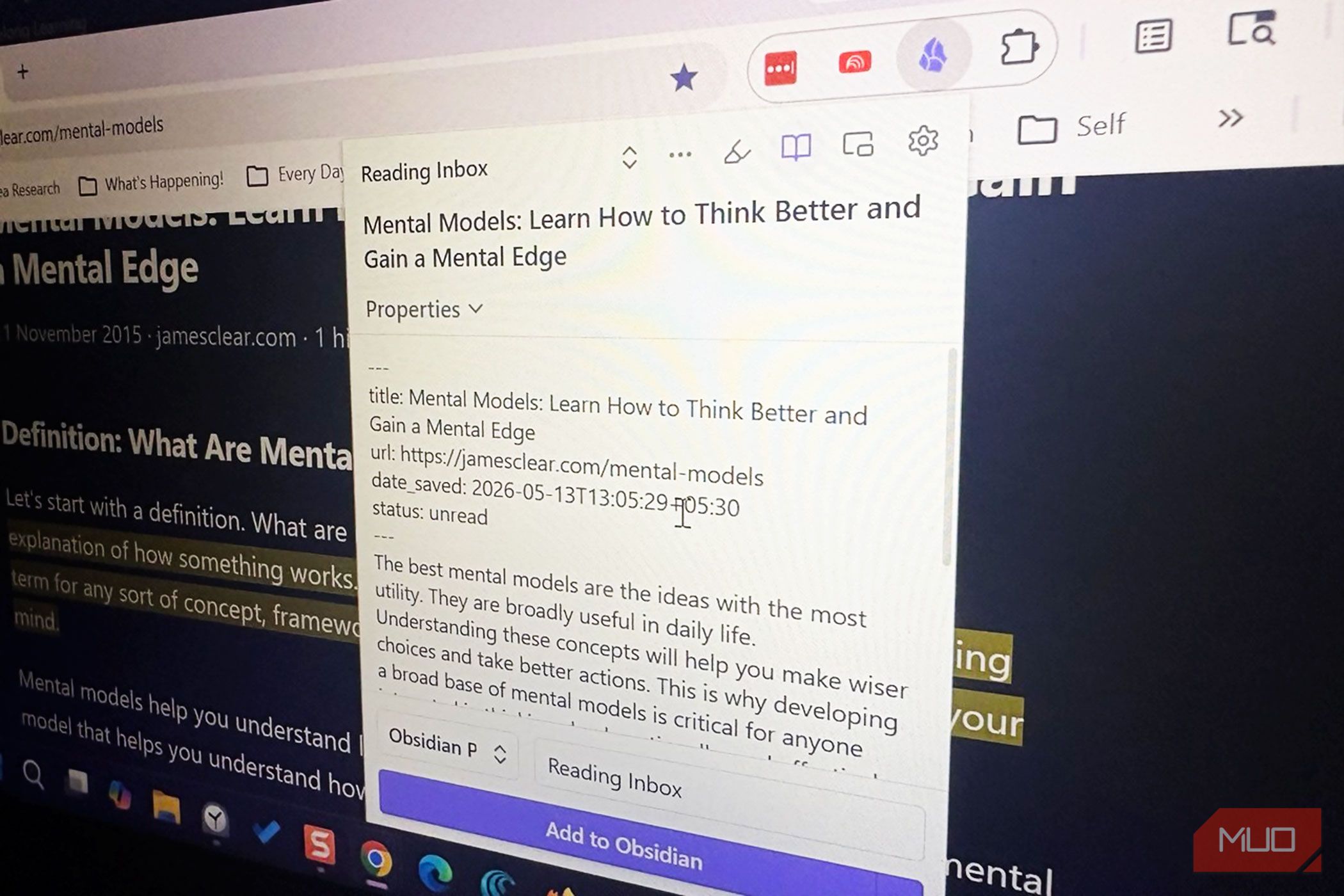
First, install the Obsidian Web Clipper extension from your browser’s extension store. Once installed, click the extension icon and authenticate it with your Obsidian vault. You’ll need to allow the extension to communicate with Obsidian’s local API. After authentication, you can set default behaviors, like which folder to save clippings into and which template to use.
Step 2: Capture Cleaned Webpages
Navigate to any article or webpage you want to save. Click the extension icon. The clipper automatically removes clutter (ads, sidebars, pop-ups) and extracts the core content. You can preview the cleaned version and edit it before saving. Choose a section of text if you don’t want the whole page. Then click “Save to Obsidian.” The result is a clean, readable note in your vault.
Step 3: Summarize Articles with AI
After capturing a page, the extension can summarize it using an AI service. In the clipper settings, enable “AI Summarization.” Paste your API key if needed. When you save an article, the extension will call the AI to generate a concise summary (e.g., 3-5 bullet points). This summary is appended to the note, helping you quickly grasp the key points without rereading the full text.
Step 4: Organize Research into Databases
Obsidian’s power is in links and tags. When you clip a page, the extension can automatically add metadata like the publication date, author, and URL. You can also assign custom tags (e.g., #research, #tutorial, #idea). Use Obsidian’s Dataview plugin to query these tags and build living databases—for example, a table of all clipped articles sorted by date or topic.
Step 5: Save YouTube Transcripts and Reddit Discussions
The clipper handles non‑article web content just as well. To save a YouTube transcript, open the video’s page and use the extension. It will fetch the transcript (if available) and save it as a note, often with timestamps. For Reddit discussions, navigate to the thread, click the clipper, and choose to save the OP and top comments. The result is a searchable archive of conversations.

Step 6: Customize Templates for Consistency
One of the clipper’s most powerful features is custom templates. You can create a template (using Obsidian’s syntax) that dictates how each clip is formatted—frontmatter, headings, tags, and content placement. For example, a template for articles might include a YAML block with title, source, date, and an empty “Notes” section. Templates ensure every clip follows the same structure, making them easier to query and connect later.
Tips and Best Practices
- Use consistent tags: Standardizing tags (e.g., #clipped, #youtube, #reddit) helps you filter and search quickly.
- Leverage the Daily Note: Set the clipper to append clips to your daily note for a chronological log of what you captured each day.
- Batch process older bookmarks: Import your existing bookmarks from other tools into a markdown file and then re‑clip them to bring them into Obsidian.
- Experiment with AI models: If you use a local LLM, the clipper can work completely offline—great for privacy.
- Create a “Clipped” folder: Keep all raw clippings separate from your main notes, then move and refactor them as you process the content.
- Use the “Open in Obsidian” button: The extension lets you instantly open the saved note in Obsidian for immediate editing or linking.
By following these steps, you’ll transform the Obsidian Web Clipper from a simple bookmark saver into a central hub for your digital reading. It’s not about hoarding links—it’s about turning every saved piece of information into a reusable asset.
Related Articles
- NVIDIA and SAP Forge Security Framework for Enterprise AI Agents
- Firefox 150 Launches with Linux Emoji Picker and PDF Page Reordering: A Major Productivity Boost
- The Art and Science of Volcanic Eruption Forecasting: A Practical Guide
- Automated Build Failure Analysis: Log Detective Joins Packit
- How to Migrate Your Photo Collection from OneDrive to Ente Photos: A Complete Step-by-Step Guide
- 12 Essential Insights into the Role of an Engineering Director
- 10 Essential Insights into Microsoft Agent Framework for .NET Developers
- The Hidden Pitfalls of Real-Time Collaboration Dashboards: Why More Data Doesn't Always Mean Better Teamwork